The Editor and its Components
The following screenshot shows the editor in use:
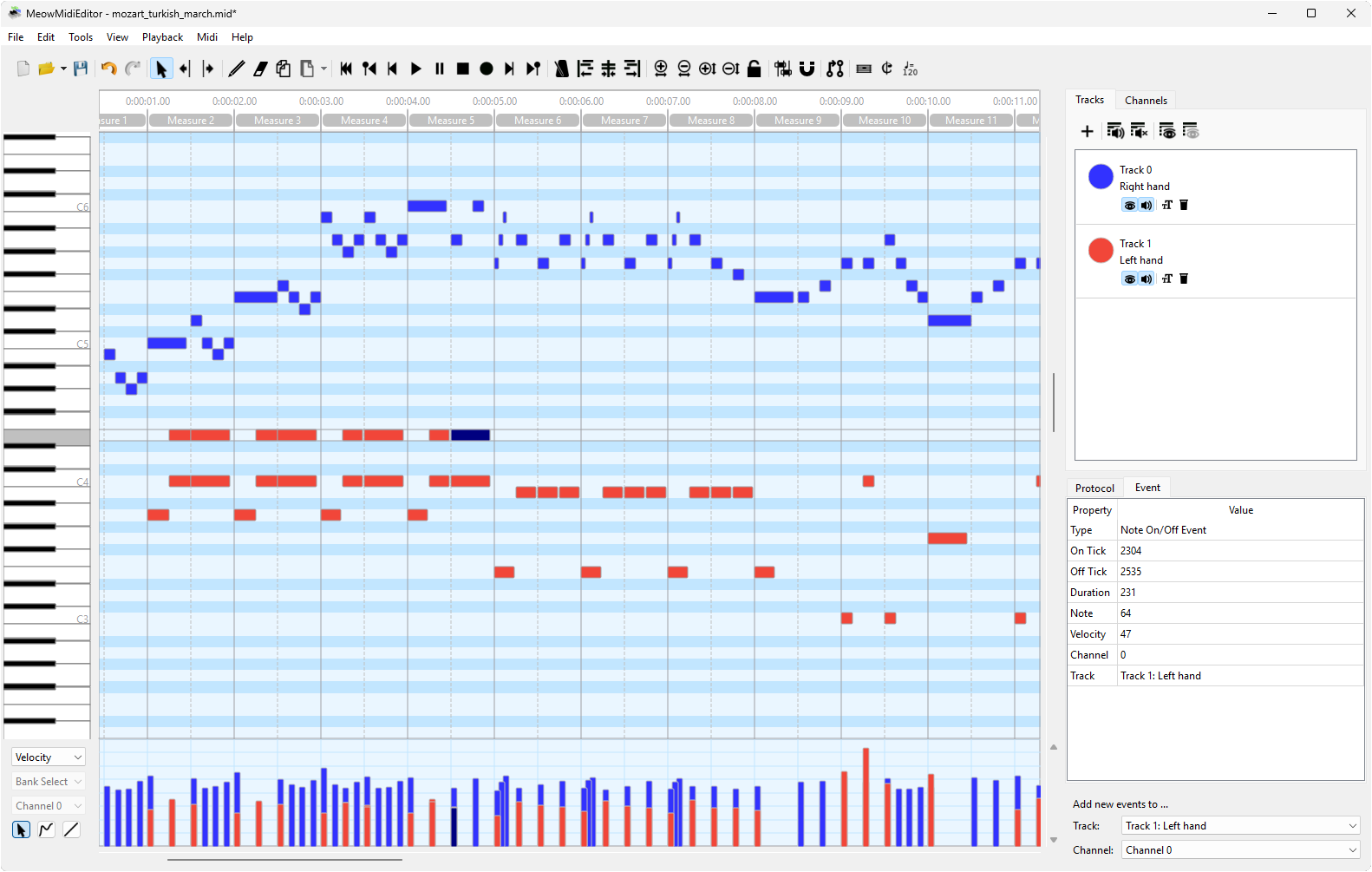
On the top of the editor there are the menubar and the toolbar which contain
buttons to load and save files, to play the currently loaded file, or
to edit the file's content. Moreover, the settings can be accessed from the
menubar and additional tools, such as the metronome, can be controlled
from the menues.
Below the toolbar, the mainscreen is split into two parts. On the left side,
there is the event view, which shows all events, and a view which can be
used to visualize and edit the velocity for each note as well as the different
controller values, the pitch for each channel, or the key/channel pressure.
On the right side, there are different windows allowing the user to edit
the tracks and channels, to visualize the protocol of all actions the user
did, and to edit all properties of the selected event(s).
Most actions which can be performed by the user are accessible using the menubar. The actions are
structured within the following submenus. For the Tools menu, see the
dedicated Tools Menu page.
📂 File Menu
✏️ Edit Menu
👁️ View Menu
Controls playback, recording, and the metronome.
See the Playback & Recording page for full details.
🎹 MIDI Menu
The toolbar contains items from the menubar in order to provide quick access to the most frequently used actions.
Event View
The event view is the most important part of the editor. It visualizes the
events in the loaded Midi file. Moreover, most editing can be done in this
window.
All events are colored, where the colors can either be chosen to represent
the event's channel or its track.
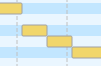
Notes are diplayed as bars. The rows of the event view represent the different
notes according to the piano roll on the left. The horizontal length of a
notes represents the note's duration according to the time line on the top of
the window.
Below the notes the other events are shown. The row names below the piano roll
indicate the event type shown in each row.
In order to edit the content of a Midi file, the user has to select a tool in
the menubar or in the toolbar. After that, the user can select events in the
event view and move the events, change the notes' durations, create new events,
and remove events.
Below the event view, the velocities of all notes, the controllers, the key/channel pressure, and the pitch
of each channel can be edited and visualized. The user can select the data to
show and edit on the left of the window.
Track Editor
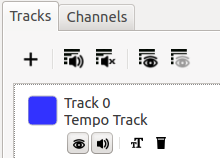
The track editor contains a list of all tracks in the currently loaded Midi file. The list shows
the names of the tracks as well as their numbers and the tracks' colors. Moreover, the track editor
enables the user to hide or mute specific channels (by clicking  and
and  ),
to rename a track (by clicking
),
to rename a track (by clicking  ) or to delete
a track (by clicking
) or to delete
a track (by clicking  ).
).
New tracks can be added to the Midi file by clicking  .
.
In order to mute or hide all tracks at once, the according actions above the track list can be used.
Please refer to Tracks and Channels for more details about the track editor.
Channel Editor
Similar to the track editor, a list of all channels is provided in the channel editor. Channels can be hidden or muted (by clicking and ). Moreover, the solo mode (by clicking  ) can be activated for a specific channel which will make the channel
be the only audible channel until the solo mode is deactivated.
) can be activated for a specific channel which will make the channel
be the only audible channel until the solo mode is deactivated.
As an instrument (or "voice") is assigned to each channel at each time, the channels' instruments can be assigned by clicking  . This will open a dialog which lets the user specify the instrument for the given channel.
Please refer to Tracks and Channels for more details about the channel editor.
Event Editor
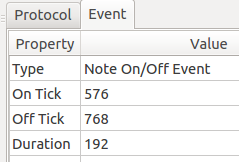
Once one or more events have been selected, the events' data will be visualized inside the event editor. The data is provided as a table containing property-value pairs. Double-clicking inside any value-field will allow the user to modify the propertie's value which will set the new value to all selected events immediately.
In the case of multiple selected events, the editor will only show the values which are equal for all selected events. Assigning new values to those initially empty values will set the value for all selected events.
Status Bar & Chord Detection
At the bottom of the editor window, the Status Bar displays contextual information about your
current selection and position:
- Selected note info — note name, octave, MIDI number, velocity, and duration
- Chord analysis — automatically detects chords from selected notes (major, minor, 7th, dim, aug, sus, and more)
- Tick position — current cursor position in ticks
- Event count — number of selected events
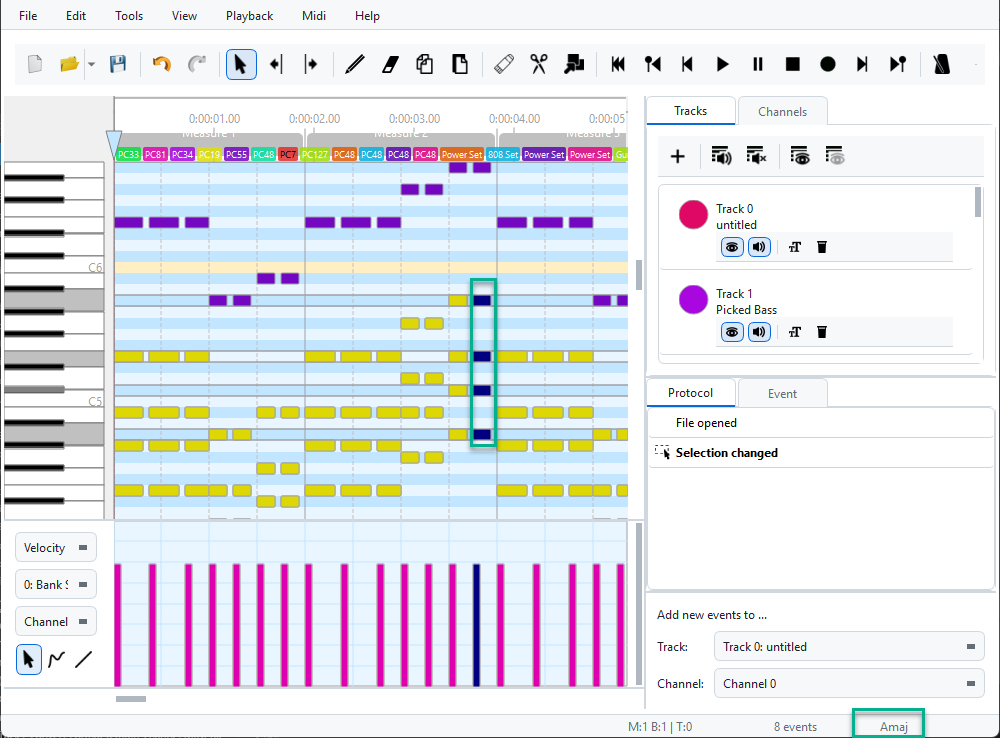
The status bar with chord detection — selecting notes shows the detected chord name.
Toggle the status bar in Settings → System & Performance.


